New post
0

How To Keep SkySafari 7 Pro From Disconnecting After 15 Minutes When Connected To SynScan Pro App? (Answer: Read On)

I know, probably shouldn't post this but I'm desperate......

Finally upgraded to SynScan Pro 2.0.12 today. They still haven't fixed the WiFi connection timeout issue I've been suffering through.

I have:

Samsung Galaxy S22 Ultra

Android 12/OneUI 4.1.1

SynScan Pro 2.0.12

What happens is my S22 Ultra will connect to the adhoc WiFi on either my SkyQuest XX12G or my friend's SkyWatcher SynScan Dob and stay connected no problem. The SynScan App however will disconnect after 15 minutes when the SynScan App is placed in the background. You can set your watch to it. It really messes with the enjoyment of Scope Control that SkySafari offers.

The only way to use SkySafari 7 Pro for scope control is to bring the SynScan app to the foreground in intervals of less than 15 minutes or the scope connection will be lost.

Forget about using the two apps together for an imaging session. It's just too much of a hassle.

SkyWatcher is not being any help here and I'm beginning to wonder if anyone is even trying to fix this. It's been an issue since joining the Beta for SS7Pro for Android.......

38 comments

  • 0
    Avatar
    Mike Atkins

    #Keiron

    Just a quick update

    SynScan 2.2.0 is out. For some reason I'm not surprised, TCP service is still broken....

  • 0
    Avatar
    Keiron Smith

    Thanks, Mike, for the info.

  • 0
    Avatar
    Mike Atkins

    You're Welcome. Not 100% yet but I may have stumbled across something. I need to do more testing to know for sure......

  • 0
    Avatar
    Mike Atkins

    Ha!!! Found a workaround that actually Works!!!!!!!!!!!

    Not sure about all devices but on my Galaxy S22 Ultra I found out how to not have the WiFi connection to my SynScan Dob fail.


    Open the device settings and connect to the Scope WiFi. 

    Open the SynScan app, connect to the scope, and complete the alignment process. 

    Open SkySafari, center the target the scope is currently pointed to and align to it. 

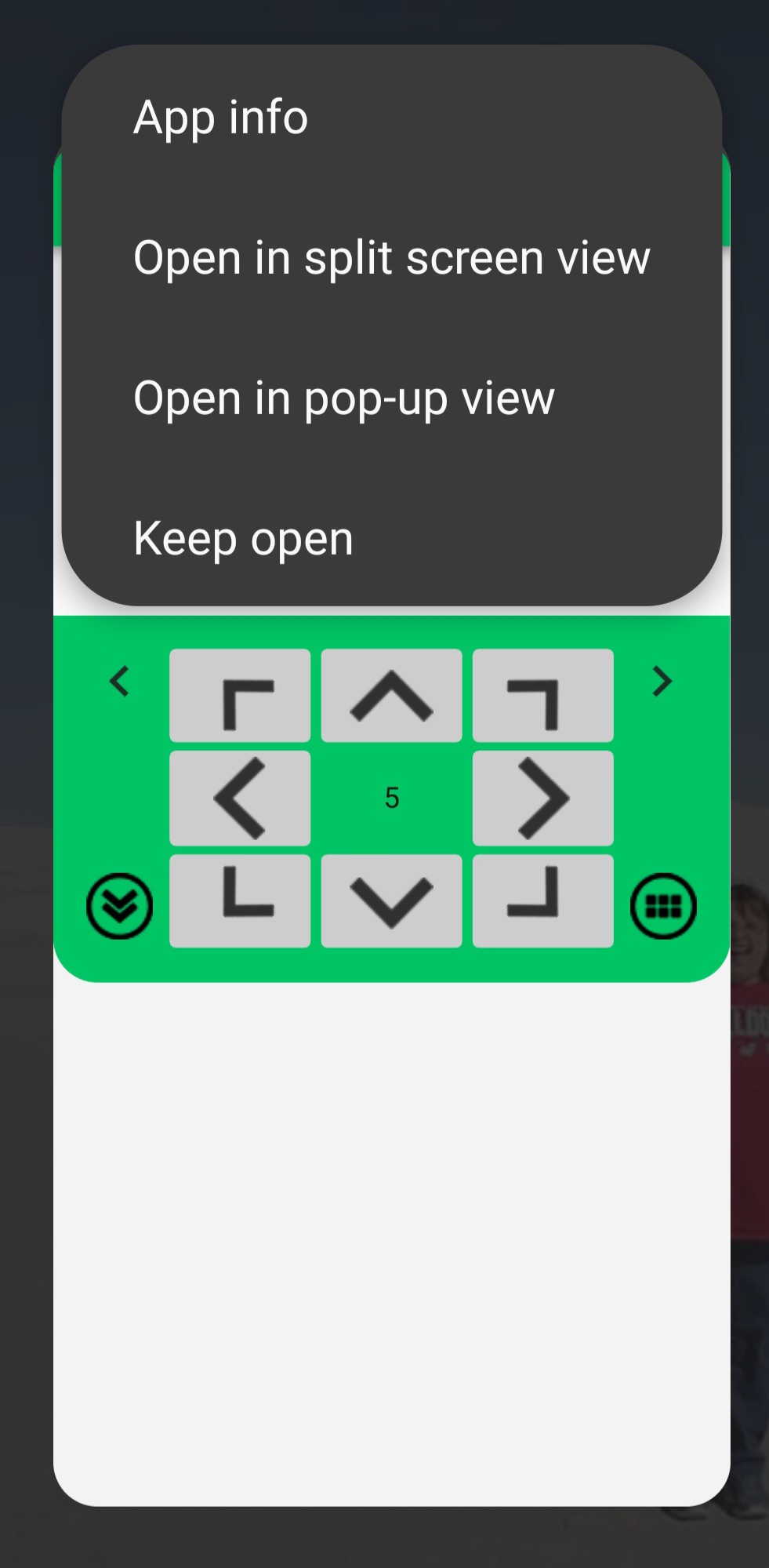
    Then pull up the recent apps and touch the icon at the top of the SynScan app. 


    A menu will show. Choose Keep Open. If necessary, bring the menu up again and choose Open in Pop-up View. 


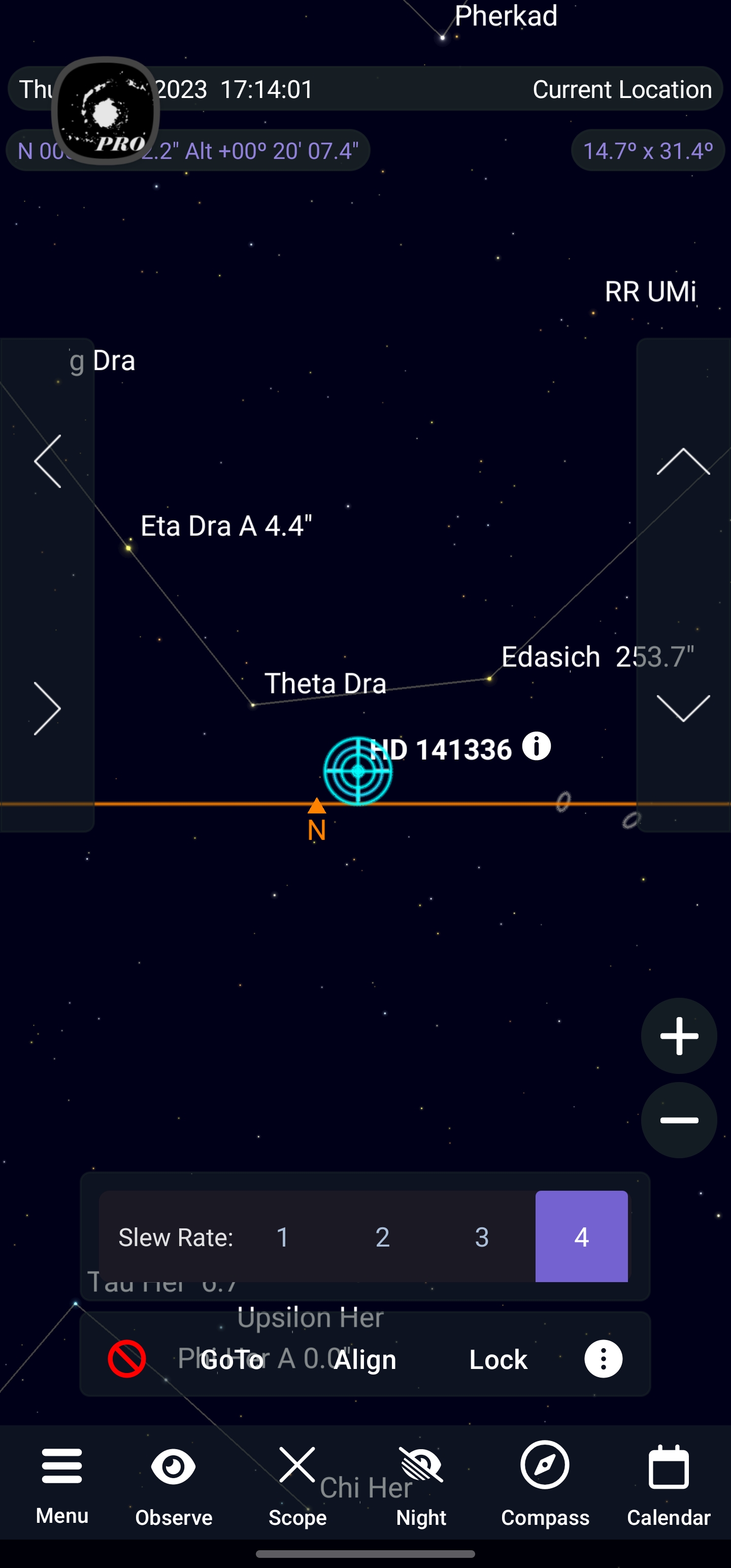
    In SkySafari you'll see this.


    When your viewing session is done be sure to go to recents, touch the icon for SynScan, and choose Stop Keeping Open  from the pop-up menu. 


    I have stayed connected for over an hour without issues. 

    Synscan Pro 2.0.6

    SkySafari Pro 7.1.8.0 Beta 

    Android 13/OneUI 5.1

    Samsung Galaxy S22 Ultra 

  • 0
    Avatar
    Keiron Smith

    Mike, 

    You are simply AWESOME!

    Thanks so much for sleuthing out a working "workaround" solution!

  • 0
    Avatar
    Mike Atkins

    What can I say. I over thought it to the point I was going to decompile code.

    Then I told myself to Keep It Simple Stupid. LOL

    I tried "keep open" before but it didn't work. Samsung put out a couple updates in short concession then put out OneUI 5.1.

    Works now!

    I added it to the How to connect as well.

  • 0
    Avatar
    Keiron Smith

    Perfect!

  • 0
    Avatar
    Alister Ling

    Workaround for newer tablets that do not have a "keep open" option, and just have the single swipe bar at the bottom (not the three buttons): Use SkySafari/Synscan in split-screen mode (I had to find a YouTube tutorial). Drag the thin bar at the bottom half way up - this puts you in recent apps mode. Click on the title bar of say the Synscan app and hold, choose split screen - you can then drag its "window" to about 1/3 from the top. Then choose SkySafari and it will take the lower 2/3. When I go to an observation and click on the mic for voice-to-text, the app expands to more screen real estate, but then pops back to the lower 2/3. Ran a mount for more than 2h this afternoon, no disconnections!

    Note that the above may be obvious to expert tablet users, but it wasn't to me, a relative tablet newb.

Please sign in to leave a comment.