I'm trying to use SmartEye with a Celestron CPC 1100 and SkyPortal WiFi module, through SkySafari 7 Pro on an iPad. I've read all the findable documentation and tried what seems to be all combinations of settings, and I can't get SkySafari to connect simultaneously to the SmartEye and telescope. Has anyone been able to do this, and if so, can you share the magic?
Date
Votes
6 comments
-

Keiron Smith Hi Gillespi,
SmartEye Integration is native in SkySafari 8 Pro.
Did you upgrade to SS8 Pro yet?
Thanks!
-

gillespi I was given the recipe in a posting on Cloudy nights that worked. The main issue involves programming the SkyPortal WiFi module to talk to the Smarteye, which acts as a wifi hub.
I did upgrade to SS8 Pro just recently. The only remaining problem I have is intermittent disconnects, which I hear is a common problem.
-
Keiron Smith Hi Gillespi,
Please link us to the CN post. Thanks!
-
-
Keiron Smith Copied from the link here: https://www.cloudynights.com/forums/topic/971106-connecting-smarteye-to-skyportal-wifi-using-skysafari-7-pro/?do=findComment&comment=14241563
I had the same issue, but I was able to resolve it. Initially, I had a setting incorrect in the SkySafari. I've tried to capture all of the steps I used to configure the communications:
PART 1
- Place the Celestron SkyPortal module into Direct mode (slide switch UP).
- Connect your phone to the Celestron SkyPortal wi-fi.
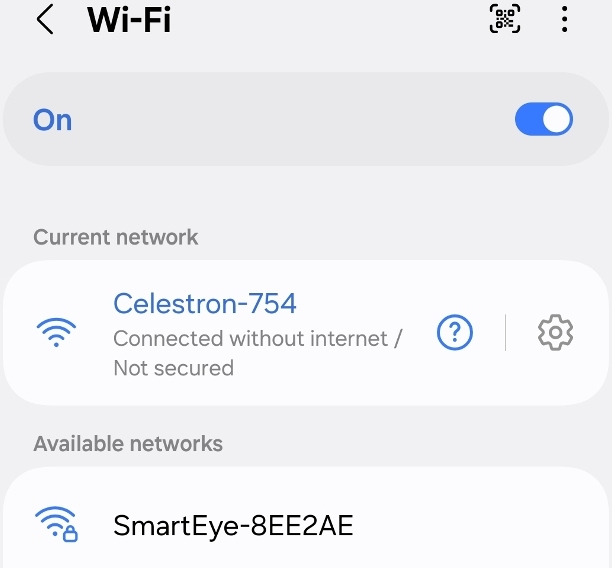
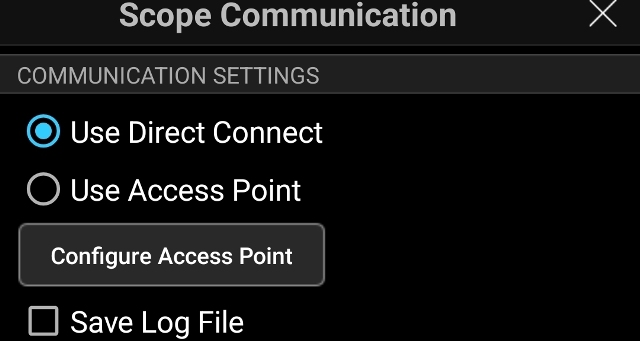
- Open the SkyPortal app and connect to the scope (don't align). Then open the app settings and scroll down to scope communications. Select "Use Direct Connect" then click the "Configure Access Point" button.
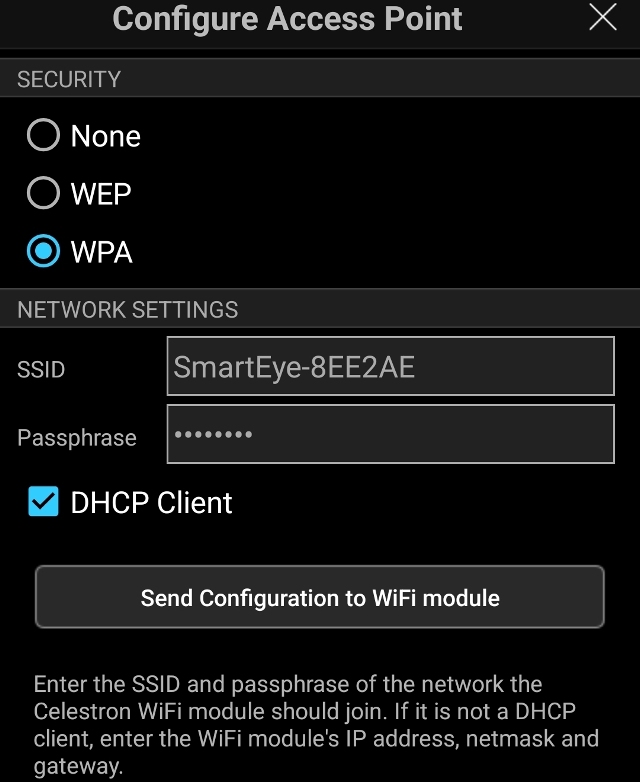
- Configure the access point settings as shown below. WPA security, your SmartEye's SSID & password, enable DHCP. Then click the button to send the settings to the SkyPortal module.
- Click "OK" to close this configuration dialog.
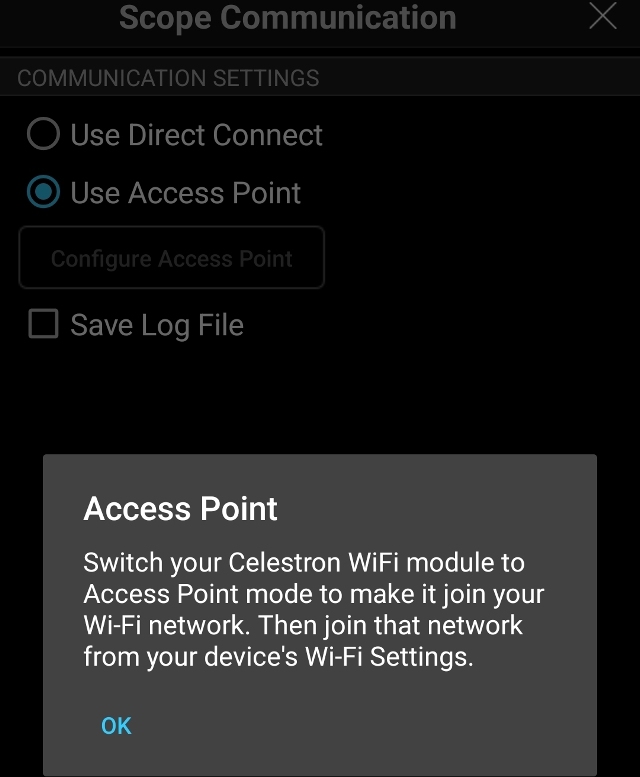
- Change the SkyPortal app to communicate in access point mode. Close the settings and close the SkyPortal app.
PART 2
- Select your mount type. Click "Next".
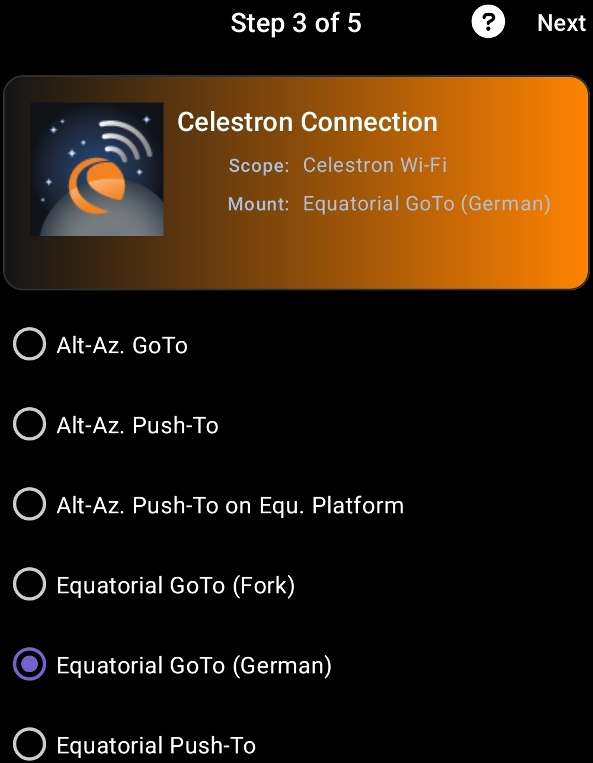
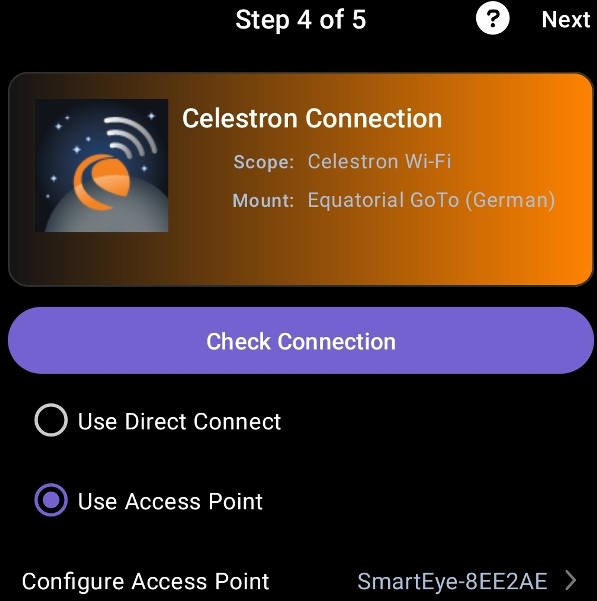
- Select "Use Access Point" mode for the connection type. Click "Next".
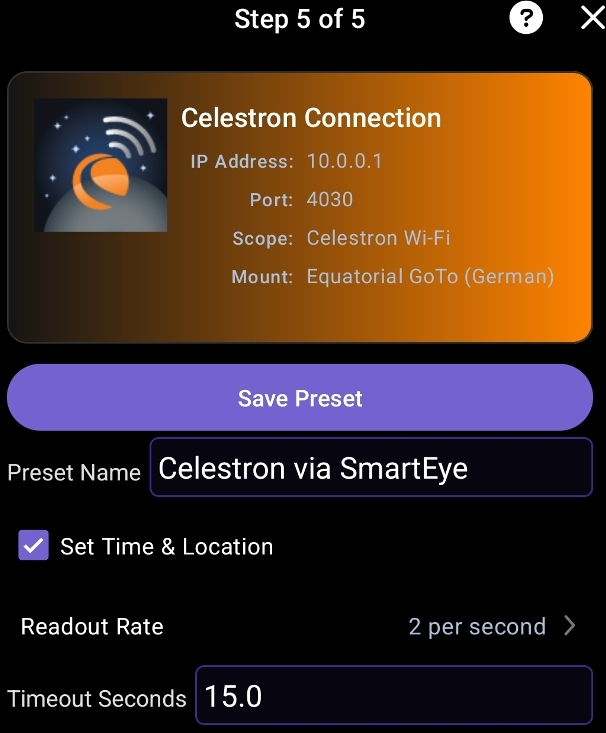
- Give your preset a name and enable the option the send time and location to the scope. Save your preset.
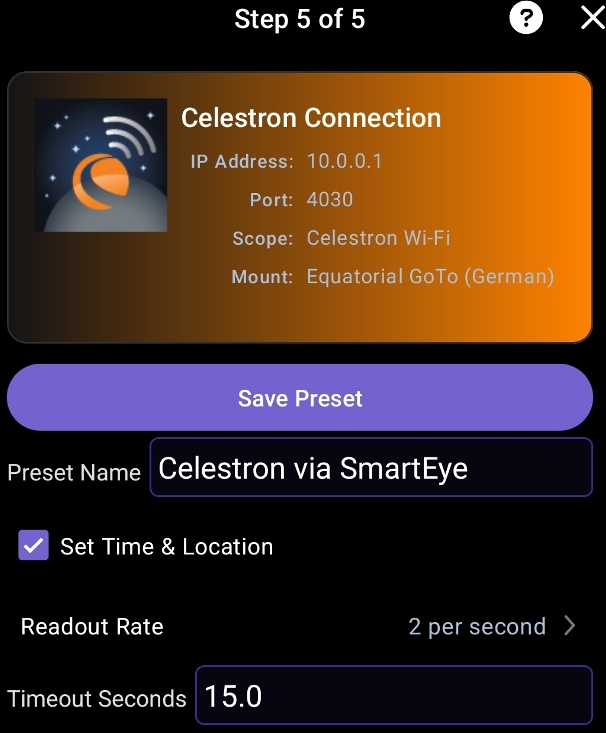
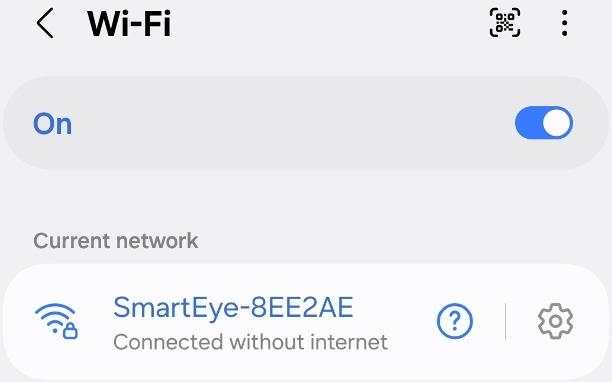
- Finally, switch your SkyPortal module to access point mode (slide switch DOWN). Change your phone's wi-fi connection to your SmartEye's. At this point both you phone and the SkyPortal module should be connected to the SmartEye. SkySafari 7 should be able to locate and connect to your scope
- Place the Celestron SkyPortal module into Direct mode (slide switch UP).
-
Keiron Smith Thanks, Gillespi!
Please sign in to leave a comment.