New post
1

[UX]* Return to Place in Observing List

I'm using v6 on android.  When using an observing list, I select an object in list, center, goto, and observe. Then I return to list by tapping the list icon that is centered above the tool bar. Now, I'm looking at the top of the list again and must scroll down, find the last object i observed, and begin scrolling down from there to peruse the list.  Is there a setting that will allow me to return to where I was on the list?

Thanks

12 comments

  • Avatar
    Keiron Smith Official comment
  • 0
    Avatar
    Blaine Snow

    My problem is similar - how to return to the list and the previous place in the list without completely starting over from Observe in the toolbar.

  • 0
    Avatar
    Keiron Smith

    Blaine, 

    This works as you would expect in the iOS version.  I'm not sure why it is not working as expected in the Android version.

    I will ask developers to review this issue.

    Thanks!

  • 0
    Avatar
    Blaine Snow

    I'm using the iOS version... I just replied here because "search" found someone with the same problem only on Android. With my version, I'm having to do the exact thing - return to the toolbar, select Observe, select Observing List, scroll to the list I was at, then scroll to the next object. Very labor intensive. The same happens with the Lists provided in the Search such as Best Double Stars... have to go Search, Best Double Stars, then find the next one in the list. It would be great to return the previous place in both cases more easily.  Thanks for your help!

  • 0
    Avatar
    Keiron Smith

    I do not find the issue in the iOS version.

    Please provide the following:

    1. App and version
    2. iOS version
    3. iOS device make and model
    4. Screen recording showing the discussed behaviour.  You can share a link to the screen recording via Dropbox, or other similar web sharing service.

    Thanks!


  • 0
    Avatar
    Blaine Snow

    Somehow my post has disappeared... I will now repost it, replying to above:

    1. SS7 Pro 7.2.0
    2. iOS v16.5.1(c)
    3. iPhone 11
    4. Screen recording in Dropbox here: https://www.dropbox.com/scl/fo/feo3nawrcdez5ydm7yyxz/h?rlkey=g6uw3hzs2ewuyk5qix20ehzya&dl=0

    Please let me know if you're unable to access the screen recording video.


  • 0
    Avatar
    Keiron Smith

    I can watch the video.  Everything appears to be working as it should.

    It's not clear what the issue is.  Please describe the issue with step-by-step instructions for reproduction.

  • 0
    Avatar
    Blaine Snow

    The issue is having to go through the whole process of looking up the list and object on the list, involving finding and scrolling to the next object in the list. It’s just a lot of repeated moves to get back to a place you want in a list. Isn’t there a short cut where you don’t have to go through the entire calling-up sequence that can instead return you to the specific place in the specific list you’re working from? It’s just a pain to have to do it over and over when you’re going through multiple objects in an observing list.

  • 0
    Avatar
    Blaine Snow

    Here's a more explicit step by step explaining what's involved in recording observations of objects listed in an observing list

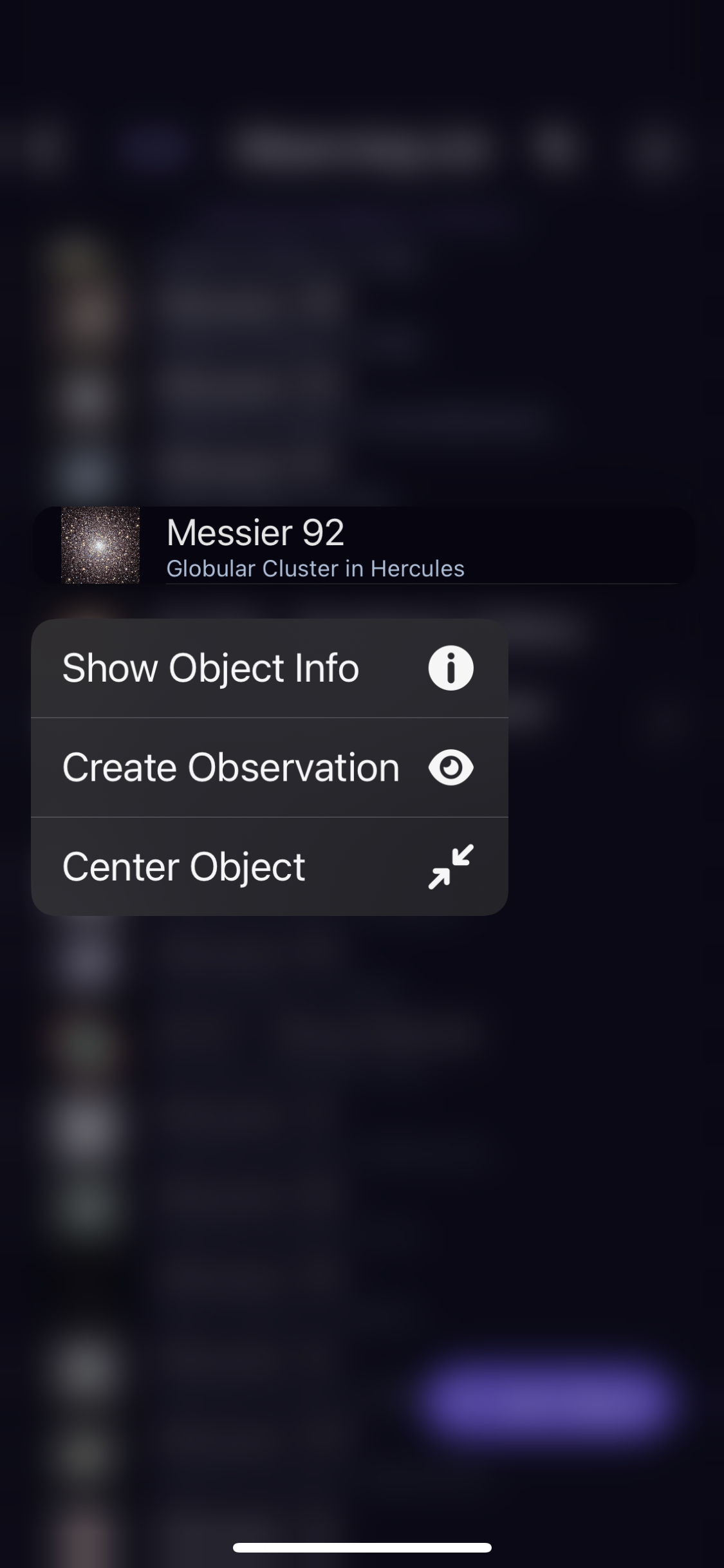
    I'm viewing the chart; 1) I go to the toolbar, choose "Observe", 2) then select "Observing Lists", 3) Scroll to List I want, 4) Choose the list, 5) Scroll to the object I want (the longer the list the bigger the pain), 6) Hold down on the object to get the pop-up list, 7) Choose "Center Object", 8) Note object location on chart, 9) Choose Object "Info" and read about it, 10) Select "More" on Info screen, 11) Select "Create New Observation", 12) Tap in Comments box, start typing observation comments (and, as noted elsewhere, experience delays of 1-4 seconds for the text to appear in the box when connected to SkyFi).

    Then, to do this for the next object in the list I 13) close the Observation, 14) close the object info, and from the sky chart, repeat the entire sequence above from #1. It's rather tedious and so THAT'S the issue - 14 steps for each observation. Maybe I'm doing it wrong and there's a more streamlined way to go through and record observations of objects in an observing list. If so, please let me know.

  • 0
    Avatar
    Blaine Snow

    I forgot to add a couple of steps: after above 9) Choose Object "Info" and read about it - I should have added 10) choose "Go To" to slew the scope to the object, then most importantly, 11) OBSERVE the object with scope/eyepiece, then continue with #10 above.... so, in total, it's about 15 or 16 steps per observation. 

  • 0
    Avatar
    Blaine Snow

    Hi Keiron - any thoughts on this? Any work-arounds? It just would be nice to not have to go through so many steps when recording observations from an observing list.

  • 0
    Avatar
    Keiron Smith

    Blaine, 

    It's not clear what the issue is here.  You have used the UI to:

    1. View all observing lists
    2. Choose one observing list
    3. View all objects in the list
    4. Choose one object from the list
    5. Center the chosen object
    6. Read info about the object
    7. Create a new observation about the object
    8. Slew your telescope to the object

    If you want to skip a step, then at this point choose to create your observation instead of centering it.

    But, you probably want to view it first, right?  

    So, it's up to you, you have to choose an object first, slew to it, observe, etc - and you can start with any one of the following:

    1. Observing Lists
    2. Observations
    3. Sessions
    4. Search
    5. Starchart

    So many simple ways to find, plan and observe the many millions of stars and deep sky objects available in the app.

    Take some time to get used to the app and define your own workflow, find what works best for you, everyone uses it differently.

    If you can clearly define a better way to implement steps in the UI, please let us know.

    (If your lists are too long, make shorter lists.)


Please sign in to leave a comment.