User says:
Extract the SkyData.7z from the installation source and copy it to Program Data - and it works.
Date
Votes
2 comments
-

Keiron Smith User workflow:
1.
2.
3.
4.
-
Keiron Smith ## Does the SN* installer have to be running in the background to apply this solution?
-
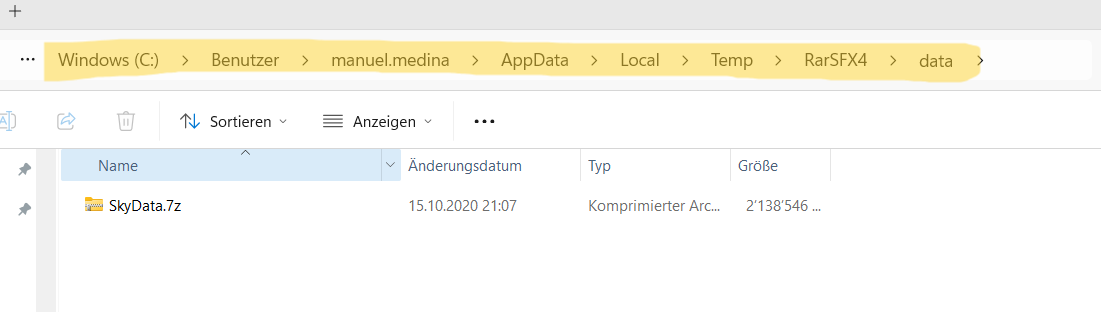
When you launch the installer, it extracts its bundled files into AppData\Local\Temp\RarSFX*\data.
-
While the installer is still open (or at least before it cleans up), that extracted payload is sitting there, and you can find SkyData.7z.
-
After the installer finishes or is closed, it may delete that temp folder, so SkyData.7z can disappear.
Practical tips:
-
Keep the installer window open while you browse to the Temp path.
-
If you don’t see RarSFX*, sort Temp by Date modified and look for the newest RarSFX... folder.
-
If it vanishes, just rerun the installer and check Temp again right away.
---
## Are we looking for `SkyData.7z` in the `.exe`?
Indirectly, yes. The installer `.exe` is a **self-extracting archive**. When you run it, it temporarily unpacks its contents (including `SkyData.7z`) to a temp folder. That’s why you see `SkyData.7z` appear under a `Temp` path.
You can sometimes also extract/open the `.exe` directly with **7-Zip**, but the screenshots show the “run it, then grab the extracted payload” approach.
---
## What’s the significance of `AppData\Local\Temp\RarSFX4\data`?
That path is:
- `AppData\Local\Temp`: your user’s temporary working directory (Windows uses it for installers, updaters, decompression, etc.).
- `RarSFX4`: a folder name commonly created by **RAR self-extracting (SFX)** installers (and sometimes similar packers). The number can vary (`RarSFX1`, `RarSFX2`, etc.).
- `data`: where the installer drops its packaged payload.The screenshot shows exactly that location and `SkyData.7z` sitting inside it.
---
## Do we unpack the `SkyData.7z` we find at the end of that pathway?
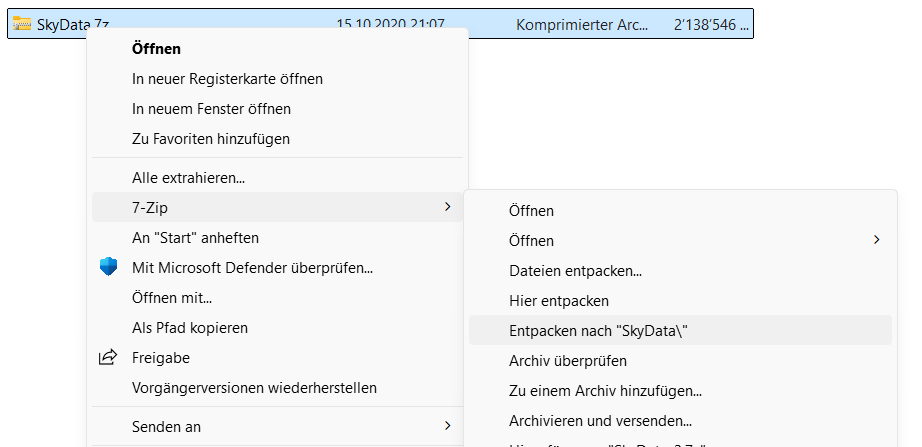
Yes. In the workflow shown, you right-click `SkyData.7z` and use **7-Zip** to extract it (e.g., “Extract to `SkyData\`”).
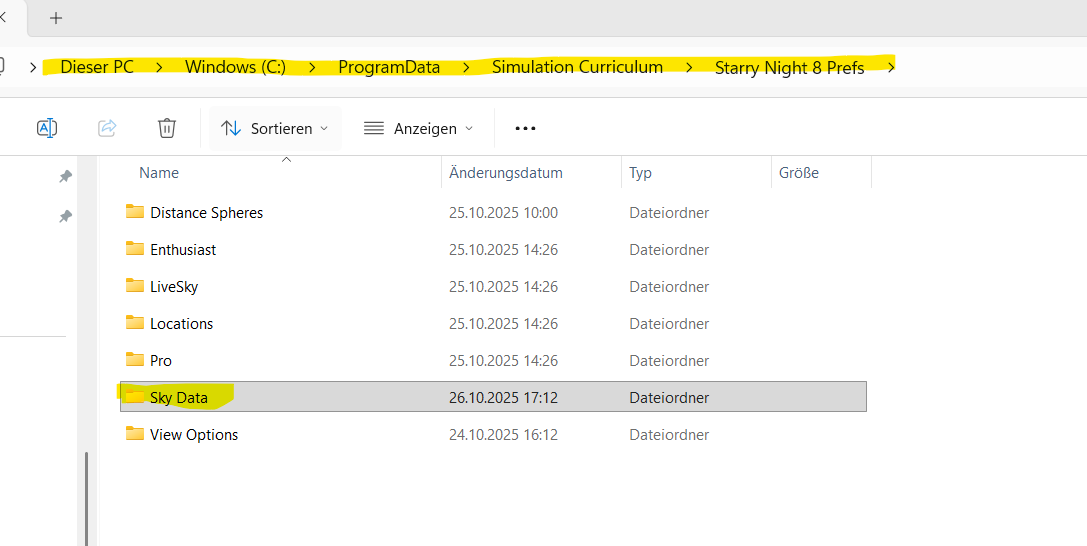
That produces a `Sky Data` / `SkyData` folder (depending on the archive’s internal naming), which you then copy into the **ProgramData** location Starry Night expects.
---
## Why is `SkyData.7z` in that temp pathway?
Because the `.exe` installer needs to unpack its internal files somewhere to run the install. Windows convention (and installer convention) is:
**unpack to Temp → run/copy files from there → then clean up afterward**
That also means two practical things:
- The Temp folder is **not** a permanent storage location (it may be deleted automatically).
- You may only see `SkyData.7z` there **after starting the installer** and **before cleanup**.---
## Where does the extracted “Sky Data” folder ultimately go?
Per the screenshot, it ends up under:
`C:\ProgramData\Simulation Curriculum\Starry Night 8 Prefs\Sky Data`
That’s the “real” expected location, not Temp.
---
-
Please sign in to leave a comment.